How to put a prayer widget on your iPhone Lock Screen
You check your Lock Screen dozens of times a day. A prayer widget turns every one of those glances into a small course correction: today's verse, your streak, and one tap into prayer — before a single app opens.
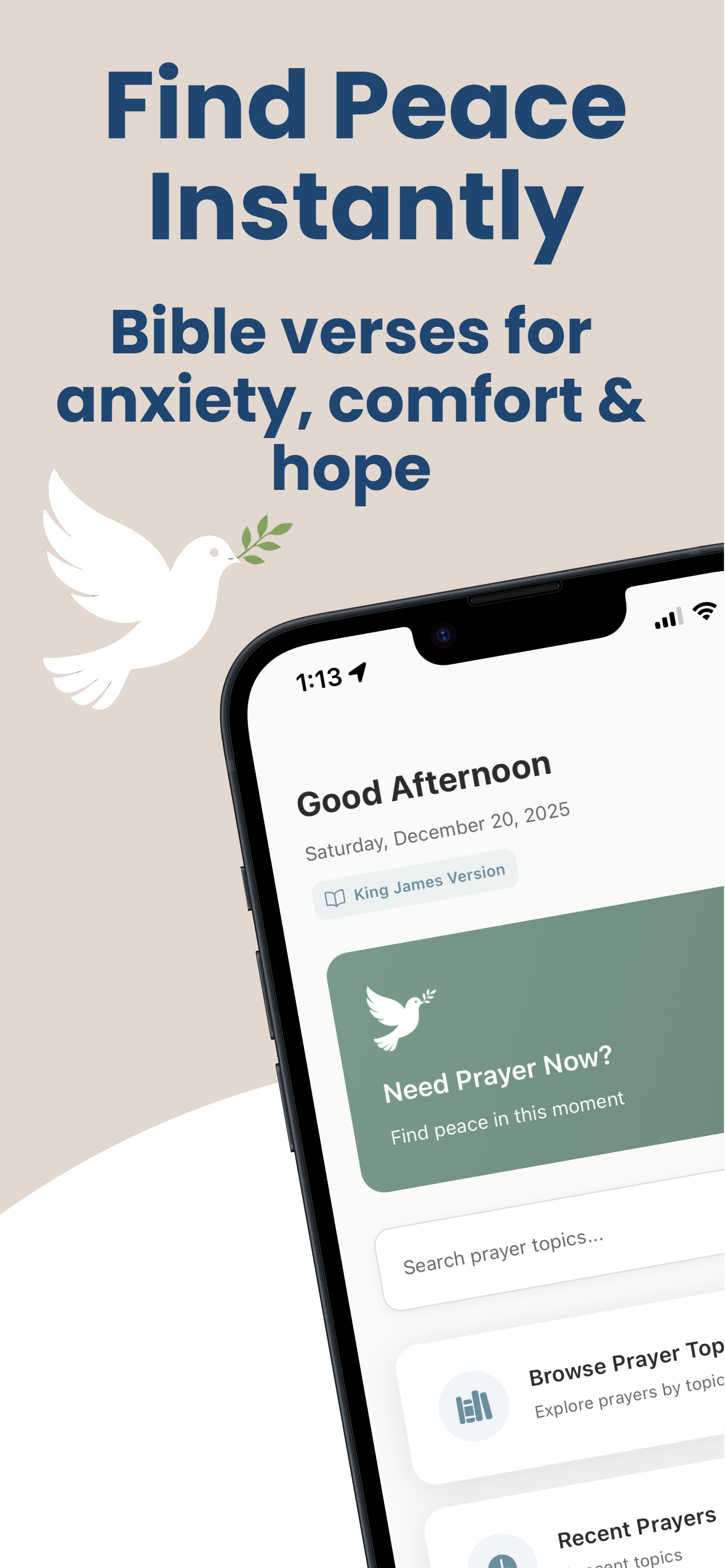
What the Guided Prayer widget shows
- A daily verse — a new scripture each day, drawn from the app's library of 260 verses, in your chosen translation (KJV or World English Bible) and language (English or Spanish).
- Your prayer streak — including whether today's prayer is done and any grace days you're holding.
- A one-tap path to pray — tapping the widget deep-links straight into the daily guided prayer flow.
Four sizes are supported: small and medium Home Screen widgets, plus the rectangular and circular Lock Screen widgets.
Add it to the Lock Screen
- Install Guided Prayer and open it once (the widget needs the app to have run).
- Press and hold your Lock Screen, then tap Customize.
- Select the Lock Screen, tap the widget area below the clock.
- Find Guided Prayer in the widget list and choose the rectangular (verse + streak) or circular (streak) style.
- Tap the wallpaper to save.
Add it to the Home Screen
- Press and hold any empty spot on your Home Screen until apps jiggle.
- Tap the + in the top corner and search for Guided Prayer.
- Choose the small or medium widget and tap Add Widget.
Place it where your most-opened app used to sit — prime thumb territory. If the first thing your thumb finds is a verse instead of a feed, the morning starts differently.
Verse first, feed later
Guided Prayer's widgets keep scripture and your streak in view all day, and Focus Lock can hold the distracting apps until the prayer behind the widget is done.
Download on the App Store